

Handling data erasure requests
A data erasure removes a user’s account and personal data from the workspace. This page walks through how to file or approve an erasure, when you may skip the 30-day grace window, what is preserved for legal reasons, and how to handle a failed run.
How a request reaches you
Section titled “How a request reaches you”An erasure request can arrive from three places:
- The user filed it themselves from the mobile app (or, for coaches and admins, from their own account privacy page in the Practice app). The 30-day grace window starts immediately.
- A coach filed it on behalf of a client. It lands as Awaiting confirmation and waits for your approval.
- An admin (you or a colleague) filed it from the Privacy tab of the user’s profile in User Management.
You take action when a coach’s request is waiting for approval, when you are filing one yourself, or when a request has Failed.
Step 1 — Open the user’s Privacy tab
Section titled “Step 1 — Open the user’s Privacy tab”To file an erasure yourself:
- Open User Management > Users and open the user’s profile.
- Select the Privacy tab. It shows Privacy actions and the user’s Request history.
- Click Erase user data.
To review a request that is already filed, open Privacy & Compliance > Requests, set Type to Erasure, and click the request. The detail page shows the target user, who filed the request, the scheduled date, and the full lifecycle and audit log.
Step 2 — Fill in the erasure dialog
Section titled “Step 2 — Fill in the erasure dialog”Erase user data opens a confirmation dialog.
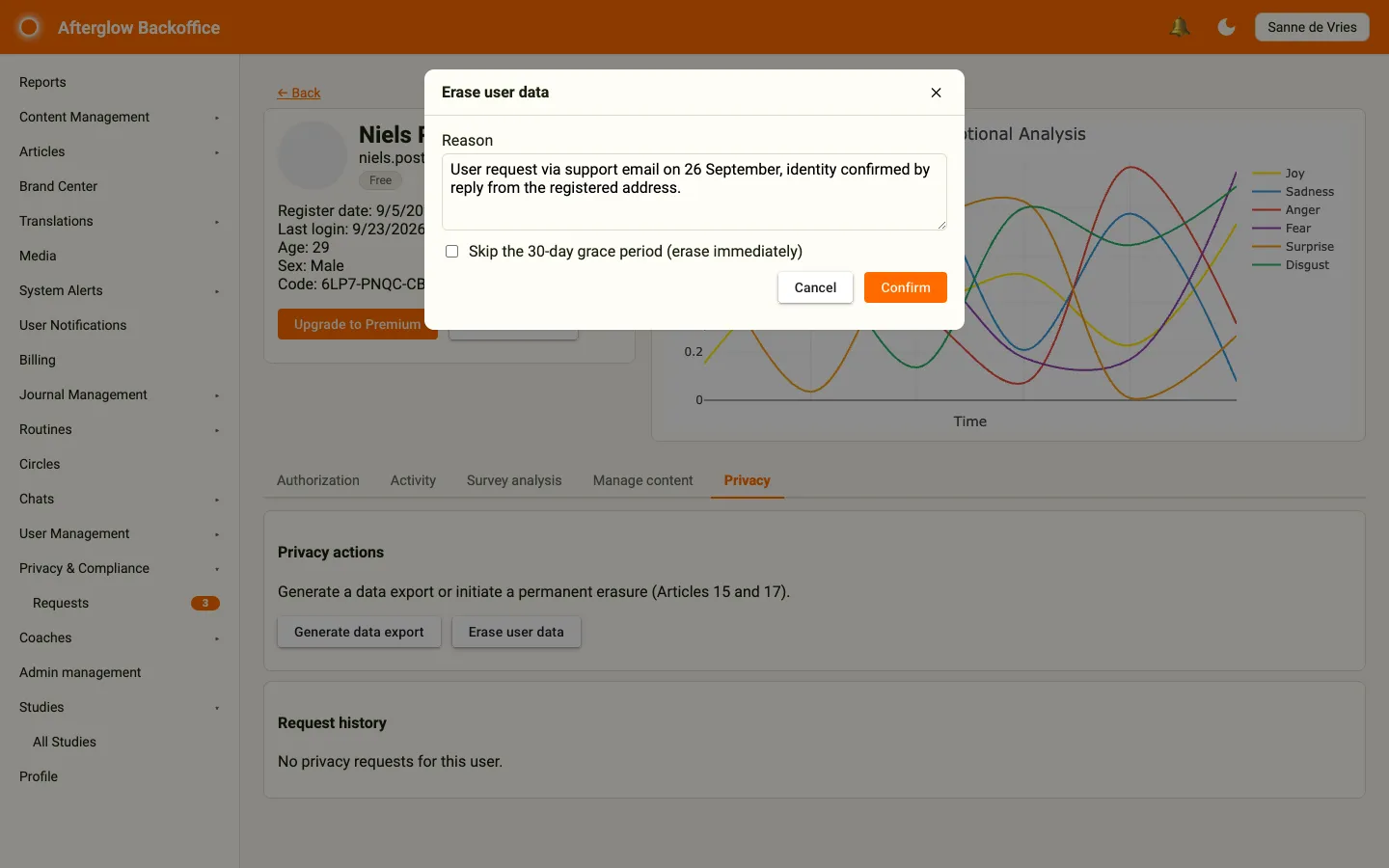
- Check that you are on the right user. The user’s name and email are shown on the profile behind the dialog.
- Provide a reason. This is mandatory — Confirm stays disabled until you enter one. Common values are “User request via support email”, “Client off-boarding requested by coach”, or a court order reference.
- Decide whether to skip the 30-day grace period — see the next section.
- Click Confirm.
The “Skip the 30-day grace period” checkbox
Section titled “The “Skip the 30-day grace period” checkbox”By default, the checkbox is off and erasure follows the normal flow: the user has 30 days to cancel before the platform actually deletes anything.
You may tick it only when there is a strong, documented reason that justifies bypassing the grace window. Acceptable reasons are:
- A court order instructing immediate erasure.
- A confirmed account compromise where waiting risks further harm.
- A written waiver from the user explicitly asking for immediate deletion.
Do not skip the grace window for ordinary “the user is in a hurry” requests. The grace period is the user’s safety net against mistaken or coerced requests, and removing it is a serious decision. Whatever you choose, the audit log records whether the grace period was skipped.
Step 3 — Watch the pre-flight warnings
Section titled “Step 3 — Watch the pre-flight warnings”If the target user falls into one of two blocking states, the Privacy tab and the erasure dialog show a warning explaining why, and the platform refuses the erasure when you confirm:
- Last administrator — The user is the only administrator in the workspace. Promote another user to Admin first via User Management, then return to the request.
- Active future bookings — The user is a coach with bookings still in the future. Cancel those bookings (or have the coach cancel them) before erasing. Erasing a coach with live bookings would leave their clients without a session.
These guards exist to prevent the platform from deleting a user whose absence would break workspace operations or another user’s experience.
Step 4 — What happens after you confirm
Section titled “Step 4 — What happens after you confirm”If the grace window applies:
- The request shows as Awaiting confirmation, with the end of the 30-day window in the Scheduled / completed column.
- The user receives a confirmation email and a 1-day-before reminder near the end of the window. Coaches who file an erasure for themselves see a countdown card on their account privacy page.
- The user, or an admin with Cancel request on the request detail page, can cancel any time during the 30 days. Cancellation moves the request to Cancelled and nothing is deleted.
- After 30 days the platform automatically begins the actual deletion.
If you skipped the grace window, the platform begins deletion within about 15 minutes.
For a coach’s proposal, open the request and click Approve coach proposal, then Approve. Approval starts the 30-day grace window; the request keeps the Awaiting confirmation status in the Backoffice while it waits. Click Cancel request instead if the erasure should not go ahead.
Once the erasure runs, the request goes to In progress, then Completed. After completion the target user appears as [redacted] in the requests list. The user (if their notification channels still exist) and the admin who approved the request receive a completion notification.
What gets deleted, retained, and anonymised
Section titled “What gets deleted, retained, and anonymised”Erasure does not mean every database row is removed. The platform applies three different treatments depending on legal obligations and platform integrity.
Deleted
Section titled “Deleted”Personal content tied directly to the user is permanently removed. This includes:
- Journal entries, AI analyses, emotion scores, and weekly summaries.
- Routine activity, saved articles, completed surveys, and personal tools.
- Research study participation — the user’s enrolments, scheduled questionnaires, and study reminders.
- Circle memberships, chat threads they own, journal-related notifications.
- Profile photo and any attachments they uploaded.
- Push notification subscriptions on OneSignal.
Retained (for legal reasons)
Section titled “Retained (for legal reasons)”Some records must be kept to comply with EU tax and accounting law, which requires invoices and payout records to be preserved (default 7 years). These records remain after erasure:
- Booking records, with the client’s free-text notes scrubbed to remove personal content.
- Signed user documents (consent forms, terms acceptance) — the signature record remains.
- The coach’s Stripe Connect account ID, if the user is a coach with bookings. This is silently retained so historic payouts remain reconcilable.
- Stripe’s own records at Stripe — the platform does not control these.
Anonymised
Section titled “Anonymised”Some content sits inside shared community context. Hard-deleting it would break the integrity of conversations and audit trails for other users. These items are kept but the personal link is severed: the original user is replaced with a placeholder, and free text is replaced with [deleted]. This includes:
- Chat messages, chat requests, and chat moderation reports.
- Article comments and comment reports.
- Circle membership requests and circle blocks.
- Alert notifications, alert rules, and tenant access codes the user generated.
The audit log keeps only a one-way hashed identifier of the deleted user — there is no way to reconstruct the original email or user ID from it. The audit log itself is retained for at least 7 years and then automatically pruned.
For the legal background behind this split, see Data retention and privacy.
What to do if a request fails
Section titled “What to do if a request fails”A request can reach the Failed status if an external system refuses or times out. The most common cause is Stripe: if the coach has outstanding payouts that have not yet settled, Stripe will refuse to de-authorise the connected account, and the platform marks the request as Failed rather than continuing with a half-finished erasure.
When this happens:
- Open the failed request and read the Failure message in the top card.
- If the reason is outstanding payouts, wait until Stripe has settled them (usually within a few business days), then click Retry erasure and confirm.
- If the reason is a transient external error, click Retry erasure to run the erasure again.
- If the reason is unclear, contact your Afterglow representative with the request ID shown under the page title.
Failed requests are not retried automatically — the platform deliberately stops so that an admin can decide what to do next.
Tenant scope vs global scope
Section titled “Tenant scope vs global scope”Two scopes are available:
- Tenant scope (the default in this area) deletes the user’s data in this workspace only. If the user belongs to other workspaces, their account in those workspaces is untouched and their underlying identity record remains. Use this for everyday requests.
- Global scope wipes the user across every workspace they belong to and removes their underlying identity record entirely. Only SystemAdmin users can run a global erasure, with the Erase across all tenants button on the user’s Privacy tab. It is reserved for cases where the user has the right to be forgotten across the entire platform.
When in doubt, use tenant scope (Erase user data). A user can always file a separate erasure for each workspace they are part of.