

Privacy requests for clients
Coaches can file privacy requests on behalf of their clients — both data exports and account erasures. Every coach-filed request lands as a proposal that a tenant administrator must approve before the platform does anything. This page explains how the coach side of that flow works.
Why coach requests are proposals
Section titled “Why coach requests are proposals”Privacy requests under GDPR carry legal weight, and the workspace administrator is responsible for the final decision. To keep that accountable:
- Coaches propose a request from a client’s record.
- The proposal lands in the Backoffice Privacy & Compliance area, waiting for review. In Practice it shows as Pending review.
- The administrator reviews the proposal — including the reason you provided — and approves or cancels it.
- Only after admin approval does the platform start exporting or erasing.
This compliance gate protects both you and the client. It also means you do not need to handle download URLs or worry about deleting the wrong account — the admin does that part.
Filing a request from a client’s profile
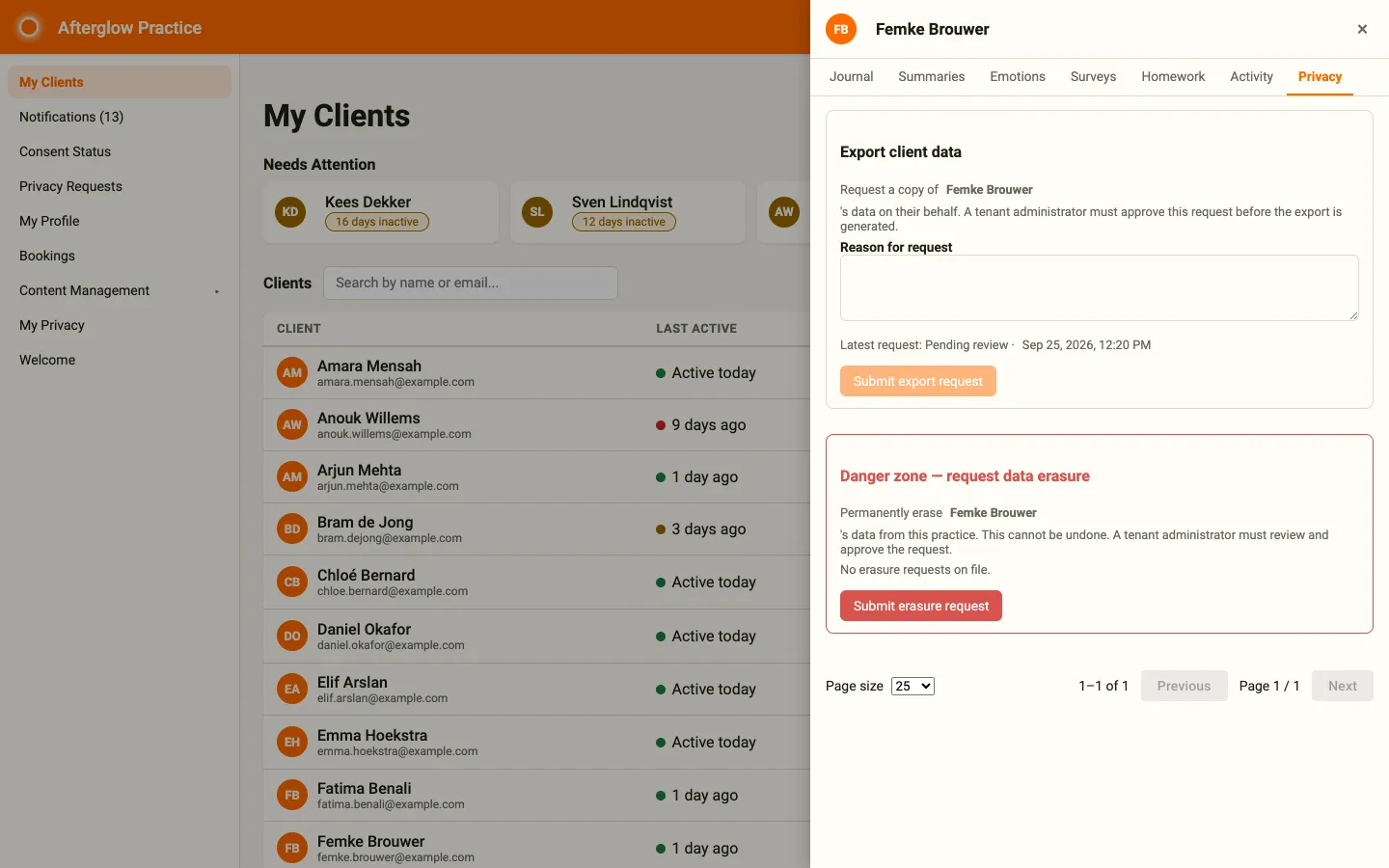
Section titled “Filing a request from a client’s profile”Privacy requests for a client are filed from the Privacy tab on the client detail panel.
- Open My Clients.
- Click any row to open the client detail panel on the right.
- Open the Privacy tab.
- Use the Export client data card or the Danger zone — request data erasure card, as described below.
Requesting a data export
Section titled “Requesting a data export”- In the Export client data card, type a Reason for request — for example “Client asked for a copy of her journal history during our session on 22 September”. The reason must be at least 10 characters long.
- Click Submit export request.
- Confirm in the browser dialog.
The card then shows the latest request and its status, for example Latest request: Pending review. While a request is still open, you cannot file another export for the same client.
Requesting a data erasure
Section titled “Requesting a data erasure”- In the Danger zone — request data erasure card, click Submit erasure request.
- The browser asks you to confirm and to enter a reason. Type the reason and confirm.
The erasure does not run immediately — the administrator must approve it, and the standard 30-day grace window applies after approval. While the request is open, the button reads Erasure request awaiting review and cannot be clicked again.
The reason you enter is stored in the audit log and shown to the administrator, so make it specific.
The ShareData gate
Section titled “The ShareData gate”The Privacy tab only works when the client has granted you data-sharing consent (the data-sharing setting in their mobile app). If a client has opted out of sharing, the tab shows the message “You can only request privacy actions for clients who have granted data-sharing consent.” instead of the request cards.
This is intentional — without consent, you do not have a legitimate basis to act on the client’s data, and the workspace administrator should be the one filing any privacy request directly.
If the client has revoked consent and you genuinely need to file a request on their behalf, contact your tenant administrator. They can file the request from Privacy & Compliance with no consent gate.
See Coaching — Client consent for background on how consent works.
Tracking your filed proposals
Section titled “Tracking your filed proposals”To see what you have filed and where it is in the approval flow, click Privacy Requests in the sidebar. This opens the My Privacy Requests page.
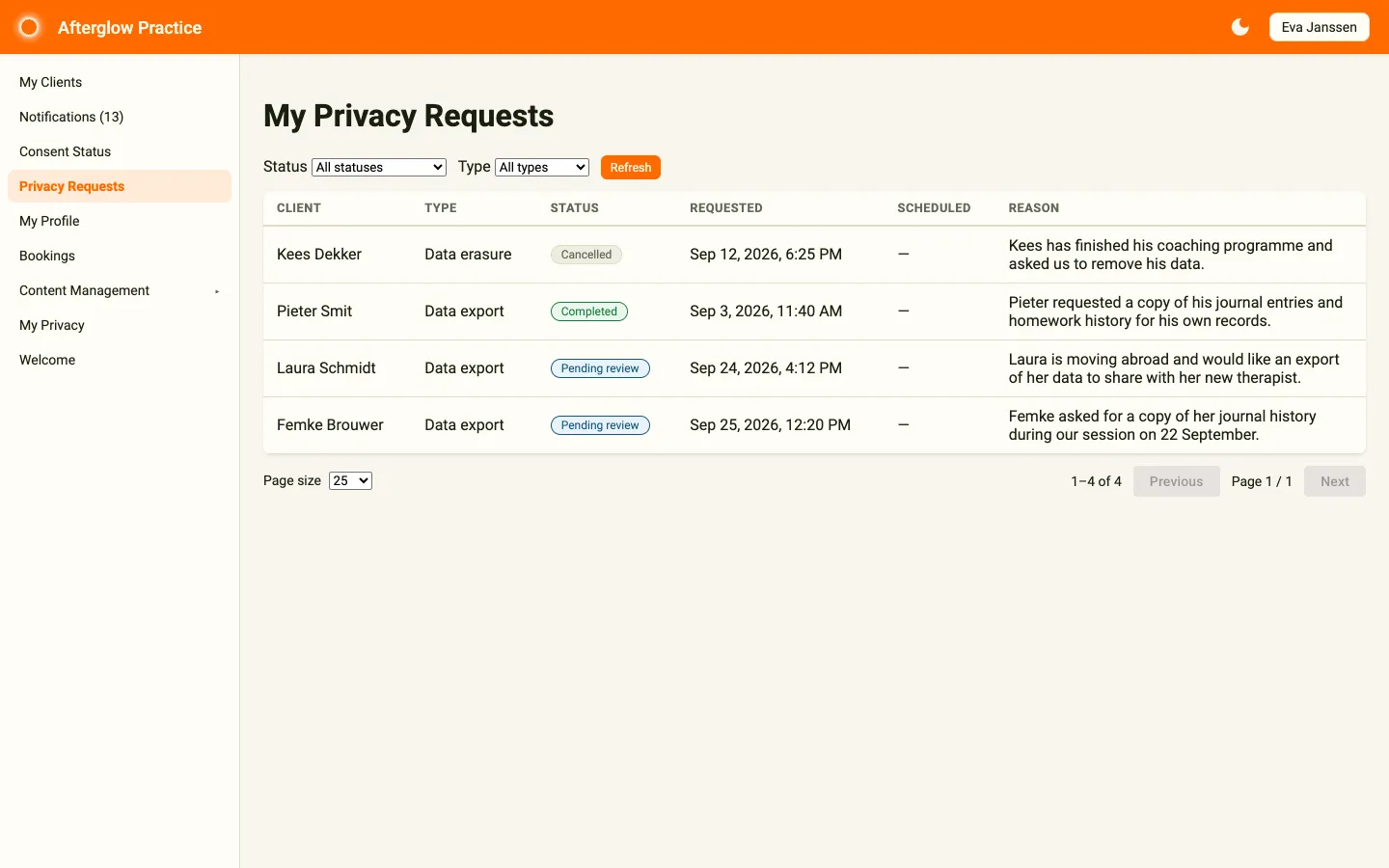
The page lists every privacy request you have filed for any client. Use the Status and Type filters to narrow the list, and Refresh to reload it. Each row shows:
- Client — The client the request is for.
- Type — Data export or Data erasure.
- Status — Where the request is in the flow (see below).
- Requested — When the request was filed or last changed.
- Scheduled — For an erasure, when the deletion will run once the grace window ends.
- Reason — The reason you gave.
Status meanings to watch for:
| Status | What it means |
|---|---|
| Pending review | Your proposal is waiting for administrator review. An approved erasure also keeps this status during its 30-day grace window; the Scheduled column then shows when deletion will run. |
| Approved — queued | The request is queued to run. For an approved erasure, this appears once the 30-day grace window has ended. |
| In progress | The platform is processing the request. An approved export moves straight to this status. |
| Completed | The request finished successfully. |
| Cancelled | The administrator (or the client) cancelled the request before it ran. |
| Failed | The request could not complete. The administrator will follow up. |
If a proposal is sitting in Pending review longer than you expect, message your administrator directly — there is no in-app reminder.
Why coaches do not see download URLs
Section titled “Why coaches do not see download URLs”For data exports, coaches are deliberately not given the download link to the resulting bundle. The download URL is sensitive: anyone with the link can fetch the user’s full data export within its expiry window. The administrator delivers the bundle directly to the client, who can also request their own copy from the privacy settings in the mobile app.
If a client asks you for their data, the right response is “I have filed the request — your administrator will deliver the file to you directly within a few days.”
What to do if a client asks to be deleted on the spot
Section titled “What to do if a client asks to be deleted on the spot”You cannot bypass the proposal flow yourself. The fastest path is:
- File the erasure request from the client’s Privacy tab.
- Notify your administrator that an urgent proposal is waiting.
- The administrator reviews and approves the proposal. The standard 30-day grace window then applies before the deletion runs.
For coaches who want to delete their own account, see Managing my account.
Related topics
Section titled “Related topics”- Managing my account — your own privacy controls as a data subject.
- Privacy & Compliance overview — the administrator’s view.
- Data retention and privacy — what is kept after erasure and why.