

Sign up for Afterglow Practice
Afterglow Practice is self-service. You can create a workspace in a few minutes from the public sign-up page, and you’ll start a 21-day free trial with every feature unlocked.
What you’ll need
Section titled “What you’ll need”- A work email address. We’ll send a verification link to it.
- A name for your practice — usually your own name or your clinic name. You can change it later on the Practice Profile page.
- An idea of your setup: working solo, a small practice, or a larger organisation.
Step 1: Create your account
Section titled “Step 1: Create your account”Open the public sign-up page. It is titled Create your practice and reminds you that the 21-day trial needs no credit card.
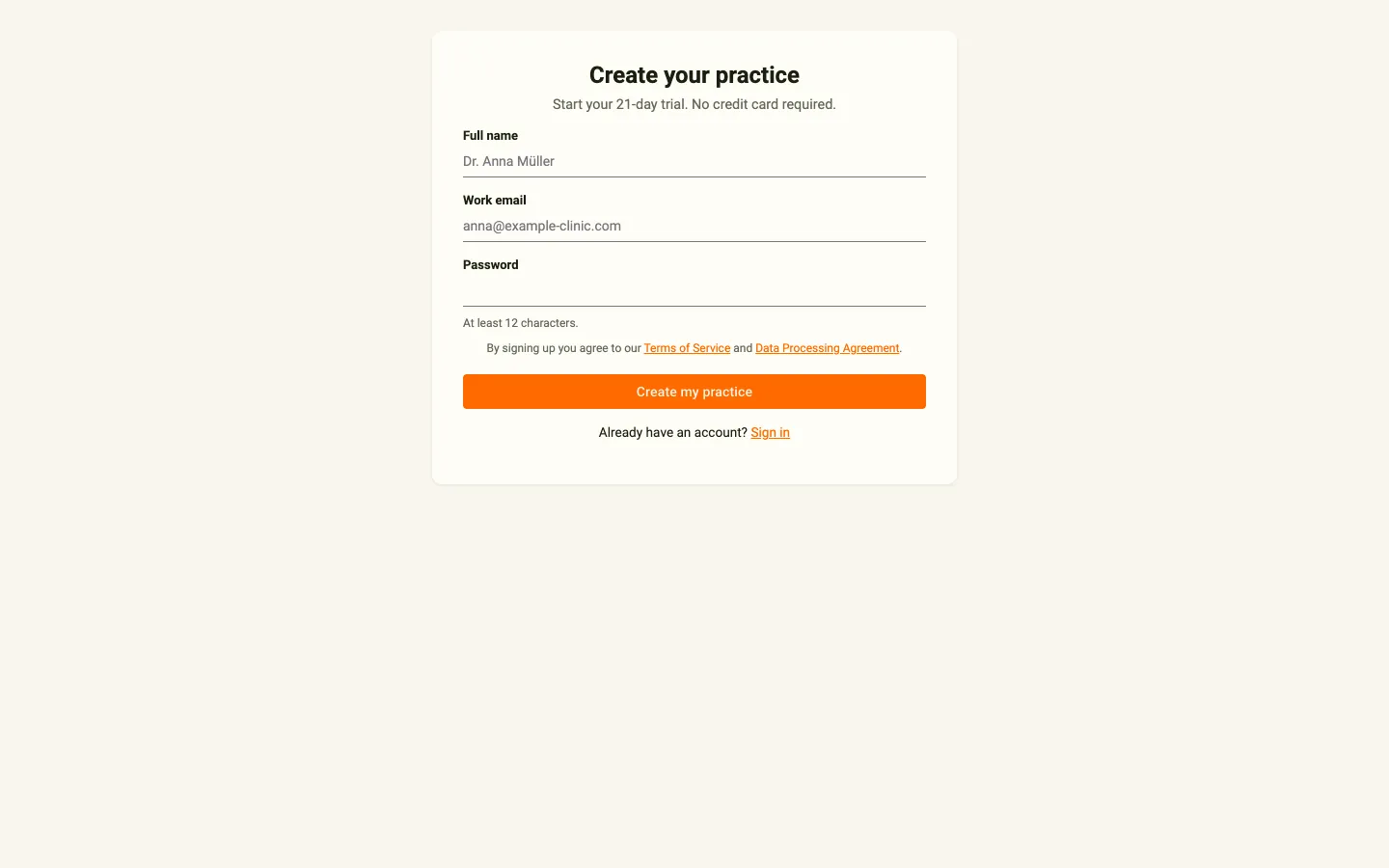
- Enter your Full name – How you’d like to be addressed inside Practice.
- Enter your Work email – Where verification, billing, and platform notifications go.
- Choose a Password of at least 12 characters.
- Complete the security check if one is shown.
- Click Create my practice.
By signing up you agree to the Terms of Service and the Data Processing Agreement, which are linked on the page.
Step 2: Verify your email
Section titled “Step 2: Verify your email”After you create your account, a Check your inbox page confirms that we sent a verification link to your work email.
Open the email and click the link. It takes you to a Confirm your email page; click Confirm my email to continue. The link is valid for 24 hours.
Step 3: Set up your practice
Section titled “Step 3: Set up your practice”A three-step wizard tailors your trial. Your answers are saved as you go, so you can close the tab and pick up where you left off.
Your practice
Section titled “Your practice”Choose the card that best describes your setup:
- Solo practitioner – Just you, with up to 10 active clients. Continues on the Starter plan after the trial.
- Small practice – Up to 3 practitioners and 60 active clients. Continues on the Growth plan after the trial.
- Larger organisation – More than 3 practitioners, custom needs, or enterprise integrations. This opens a short contact form for our team instead of starting a trial.
The plan controls which features stay available after the trial — for example, AI journal insights are not part of the Starter plan.
Details
Section titled “Details”- Practice name – The name your clients will see (required).
- Modalities – Pick all the approaches you use (for example ACT, CBT, or EMDR).
- Country and UI language – Used for reminders, reports, and invoicing.
- Time zone – Used for reminders and scheduling.
- Customer type (for invoicing) – Individual practitioner or Business / VAT-registered. Businesses can enter a VAT ID.
Click Continue to go to the last step, or Back to change your setup.
Features
Section titled “Features”Switch the features you want on or off. Every feature is unlocked during your 21-day trial, and you can change these later.
Click Create my practice 🚀 to finish. The button stays disabled until your email is verified; if you haven’t clicked the link yet, the page reminds you to check your inbox.
Your practice is created
Section titled “Your practice is created”A Setting up your practice page shows progress while we:
- Create your practice.
- Configure your features.
- Seed a Demo Patient — a sandbox client account you can use to experience the full coach-and-client flow before inviting real clients.
This usually takes 5–10 seconds. Keep the tab open; we then sign you in and take you to your welcome page.
Your first sign-in: the welcome page
Section titled “Your first sign-in: the welcome page”The first time you land in Practice, the welcome page greets you with a single recommended next step based on where you are in onboarding. See Trial & subscription for a full tour of what you can do during your trial.
What if something goes wrong?
Section titled “What if something goes wrong?”- The email never arrived. Check your spam folder. If it’s still missing, enter your email on the Check your inbox page and click Resend verification email. You can resend at most once per minute.
- The verification link doesn’t work. The confirmation page tells you the link may have expired or already been used. Click Resend the email to get a new one.
- You used a disposable email address. We block known disposable-email providers (sites like Mailinator, Guerrilla Mail, etc.) to keep workspaces tied to real practitioners. Sign up again with a permanent address.
- The email address is already in use. If you already have an account or already manage a practice, the sign-up page links you to Sign in instead.
- Setup takes longer than expected. After a minute the progress page says it is still working and that we’ll email you when your practice is ready. You can click Try again or Contact support.
Related topics
Section titled “Related topics”- User Roles — what each role can do across the platform.
- Trial & subscription — how the 21-day trial works and how to convert.
- Trial lifecycle — the underlying states a workspace moves through.