

Managing my account
The account privacy page is where you, as a coach, exercise your own data rights — request a copy of your data, delete your account, or cancel a pending deletion. This page walks through each section.
Open it by clicking My Privacy in the Practice sidebar. The page is titled My privacy.
Page layout
Section titled “Page layout”The page is split into three cards:
- My data exports — request and download a copy of your own data.
- Account deletion scheduled — only visible when an erasure is currently in its 30-day grace window.
- Delete my account — start an account erasure.
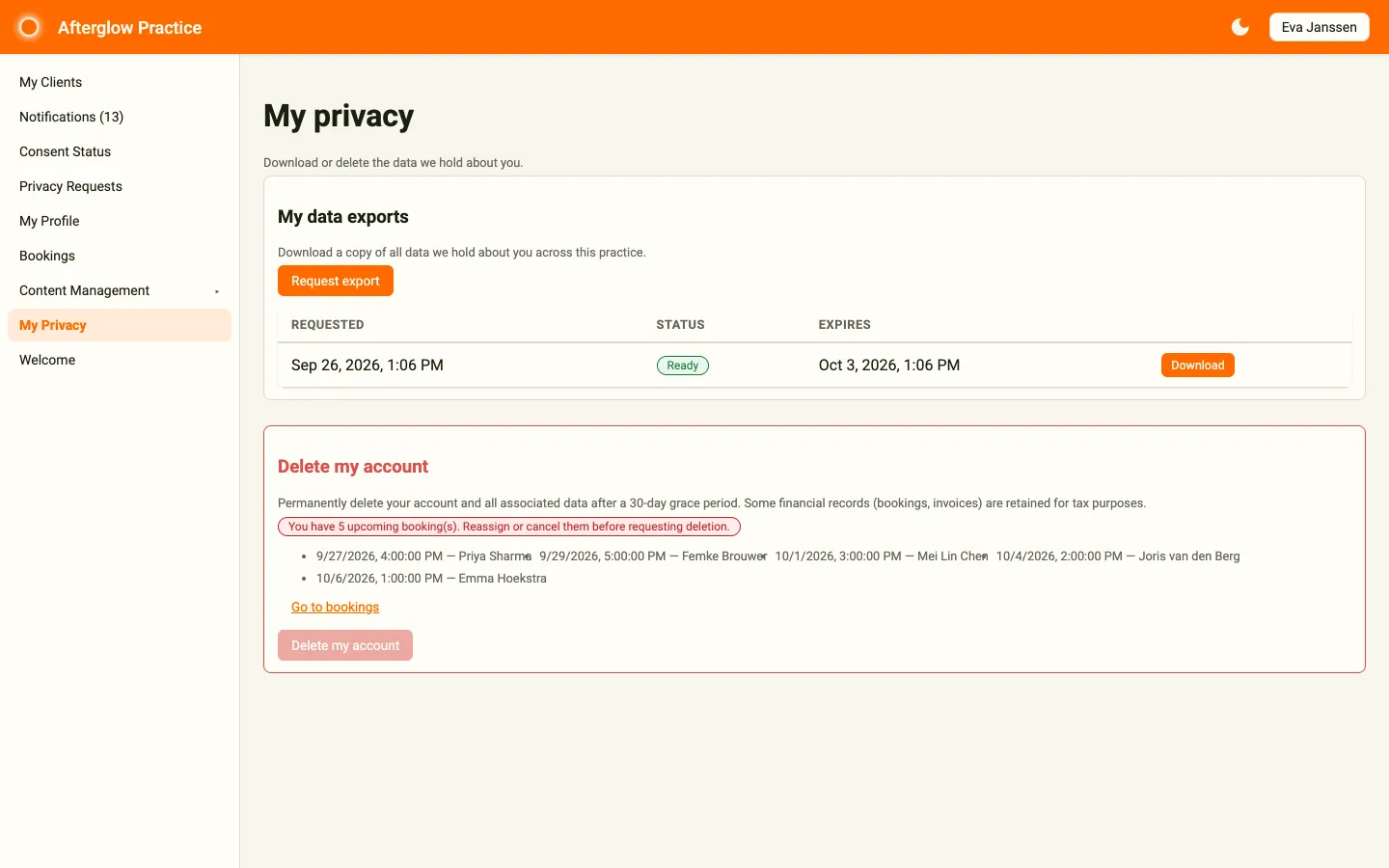
My data exports
Section titled “My data exports”The My data exports card lets you request a full copy of your account data, packaged as a single downloadable file.
Requesting an export
Section titled “Requesting an export”- Click Request export.
- Confirm the request in the browser dialog.
- The platform begins preparing the bundle in the background.
The request appears in a table with its Requested date, Status, and Expires date. The status moves from Queued to Generating to Ready. You will receive an email when the bundle is ready. The bundle includes your profile, journal entries, routines, bookings, chat history, and everything else the platform stores about you. For full detail on what is included, see Handling data export requests.
Downloading the export
Section titled “Downloading the export”When the export is Ready, the page shows a Download button alongside the request. Click it to fetch the bundle. After the expiry date the status changes to Expired and the button disappears.
The download link is signed and short-lived. Treat it like a password — do not paste it into shared chats. If the link expires before you finish downloading, return to this page and click Download again to generate a new one.
Delete my account
Section titled “Delete my account”The Delete my account card starts the erasure flow. Erasure permanently removes your account from this workspace, with the exceptions described in Data retention and privacy.
Pre-flight blockers
Section titled “Pre-flight blockers”Before the Delete my account button enables, two checks run on your account. If either is unresolved, the button stays disabled and the card tells you what to fix.
“You are the only administrator for this practice”
Section titled ““You are the only administrator for this practice””If you are the only Admin in the workspace, you cannot delete your account — doing so would leave the workspace without an administrator.
To resolve this:
- Open User Management (only visible if you also have admin access).
- Promote another user to the Admin role.
- Return to My Privacy and refresh the page. The blocker should clear.
If you are a coach without admin rights and you see this blocker, ask the workspace administrator to assign Admin to another user before you proceed.
“You have upcoming bookings”
Section titled ““You have upcoming bookings””If you have coaching sessions booked in the future, the card lists the first few (date, time, and client) and the platform will not let you delete your account — clients have already paid for those sessions and you have an obligation to either deliver them or cancel them.
To resolve this:
- Click Go to bookings on the card, or open Bookings in the sidebar.
- Cancel each future booking, providing a cancellation reason. Each client receives a notification.
- Return to My Privacy. The blocker clears once no future bookings remain.
For more on cancelling bookings, see My Practice — Bookings.
Confirming the erasure
Section titled “Confirming the erasure”When both blockers are clear, click Delete my account. A browser dialog explains that your account and data are deleted after a 30-day grace period and asks you to enter a reason (free text — used in the audit record). Enter the reason and confirm.
After confirming, the page shows “Account deletion scheduled. You can cancel during the 30-day grace period.” and the request enters the 30-day grace window.
Account deletion scheduled (the countdown card)
Section titled “Account deletion scheduled (the countdown card)”Once your erasure request is in its grace window, an Account deletion scheduled card appears between the exports and the delete card. It shows:
- The date and time your account will be deleted.
- A countdown, for example 23 day(s), 4 hour(s) remaining.
- A Cancel deletion button.

You will also receive two reminder emails during the window:
- A 7-day-before reminder.
- A 1-day-before reminder.
Cancelling before the deadline
Section titled “Cancelling before the deadline”Click Cancel deletion any time during the 30 days and confirm in the browser dialog. The request moves to Cancelled and your account is fully restored. There is no consequence to cancelling — the platform did not delete anything yet.
After the 30 days have passed, cancellation is no longer available and the platform begins the actual deletion.
What is kept after deletion
Section titled “What is kept after deletion”Even after the platform completes your erasure, a small amount of information remains for legal reasons. This is the same set described in Data retention and privacy, and includes:
- Booking records and invoice data, kept for the legal retention period (default 7 years under EU tax law). The free-text notes you wrote on bookings are scrubbed.
- Signed user documents (consent forms, terms acceptance).
- Your Stripe Connect account ID, if you had bookings — silently retained so historic payouts remain reconcilable. Stripe’s own records remain at Stripe.
- A one-way hashed identifier in the audit log. There is no way to reconstruct your email or account ID from it.
Everything else — journal entries, routines, profile photo, push notification subscriptions, articles and chats you authored (anonymised) — is removed from the workspace.
Related topics
Section titled “Related topics”- Privacy requests for clients — filing a request for a client.
- Privacy & Compliance overview — the administrator’s view of these flows.
- Data retention and privacy — what is kept and why.