

Coaching
The Coaching section is your central hub for managing client relationships, monitoring progress, and staying on top of engagement across your client base.
My Clients
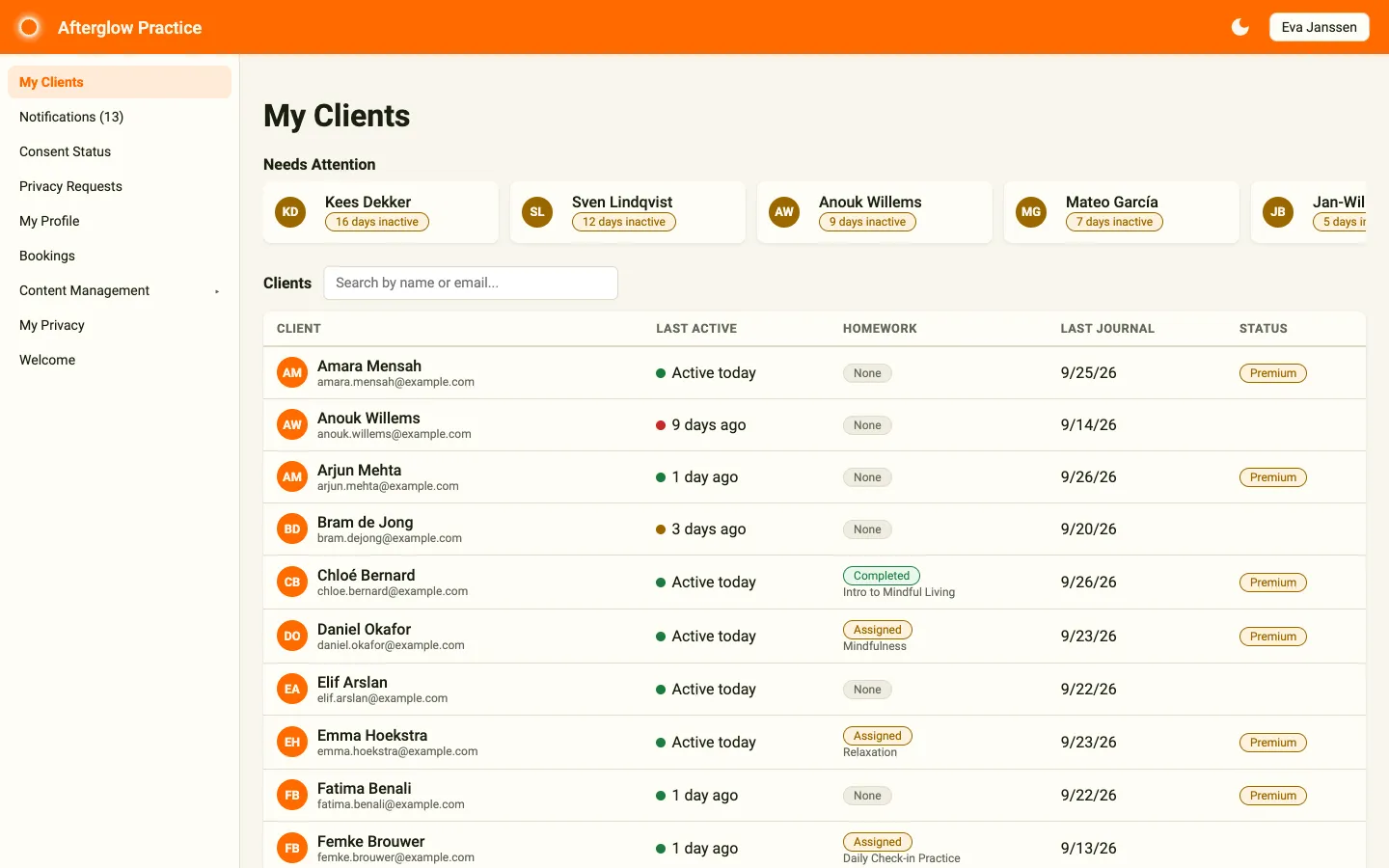
Section titled “My Clients”The My Clients page is the default landing page when you open Practice. It shows all clients who have granted you consent to view their data.
Needs Attention cards
Section titled “Needs Attention cards”At the top of the page, a horizontal row of cards highlights clients who have been inactive beyond your configured threshold. Each card shows the client’s initials, name (or email), and a badge such as 12 days inactive. Click a card to open that client’s detail panel. If there are more cards than fit on the screen, scroll the row sideways.
These cards only appear when at least one client has exceeded the inactivity threshold set in your alert settings.
Client table
Section titled “Client table”Below the attention cards, the Clients table lists all your clients. Type in the Search by name or email… field to filter the list. Use the page controls under the table to move between pages or change the page size.
Each row displays:
- Client — Name, email, and initials. Your sandbox Demo Patient is marked with a DEMO badge.
- Last Active — A color-coded indicator showing when the client was last online (green for today or yesterday, amber for up to five days, red for longer). Clients who have never signed in show Never.
- Homework — The status of the most recent homework (Completed, Assigned, Due Today, Due Tomorrow, Overdue, or None), with the lesson title underneath.
- Last Journal — The date of the client’s most recent journal entry.
- Status — A Premium badge if the client holds a premium subscription.
Click any row to open the client detail panel on the right side of the screen.
Client detail panel
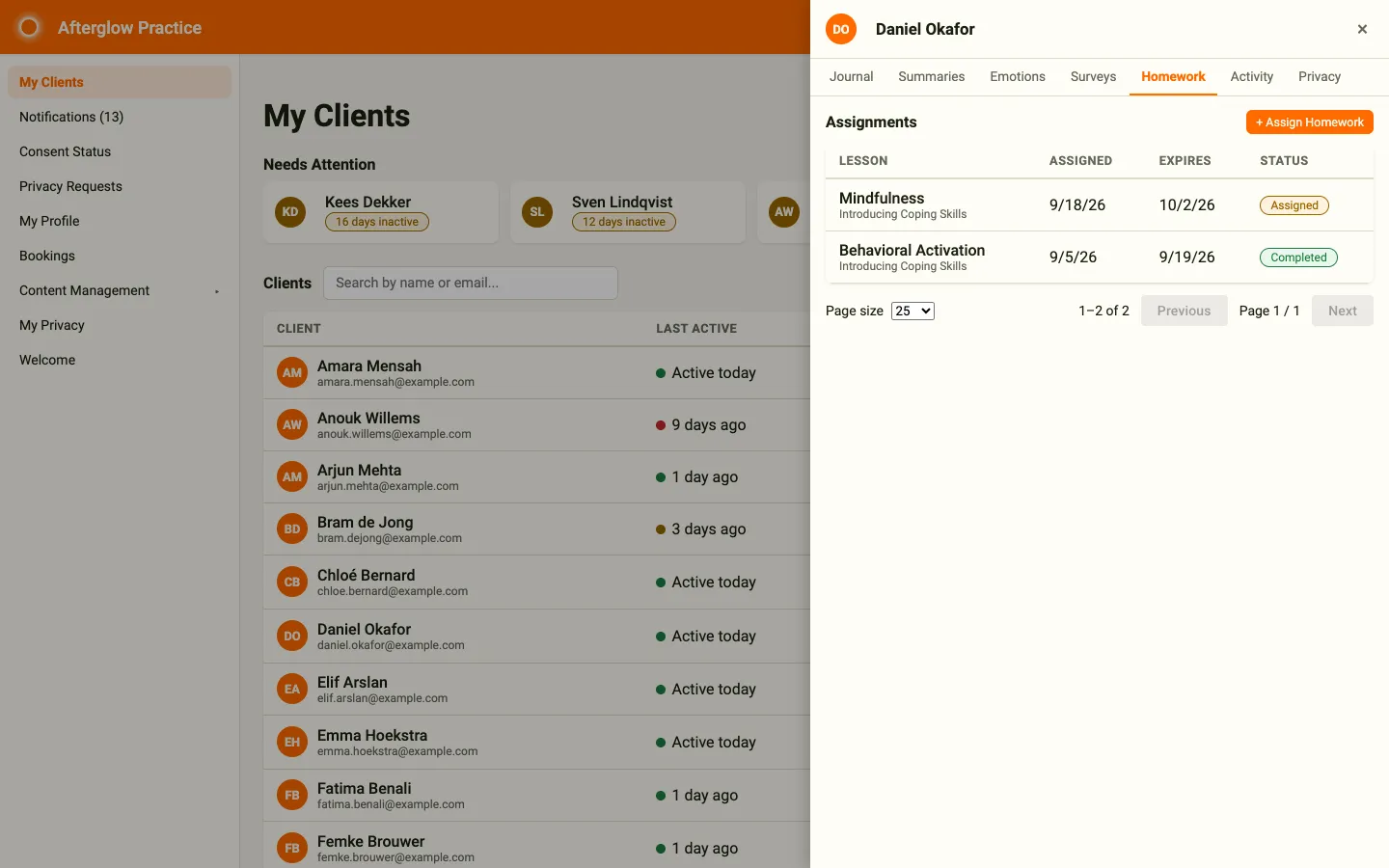
Section titled “Client detail panel”The detail panel is a slide-out drawer that appears on the right when you select a client. It shows the client’s name and initials in the header and provides seven tabs for exploring their data: Journal, Summaries, Emotions, Surveys, Homework, Activity, and Privacy. Click the × in the header, or anywhere outside the panel, to close it.
Journal
Section titled “Journal”Lists the client’s individual journal entries in reverse chronological order. Each entry card shows:
- The entry date.
- A sentiment chip indicating whether the entry was Positive or Negative, with a numeric sentiment score, for example Positive (0.9).
- A short AI-generated summary of the entry.
- Theme tags extracted from the entry content.
Clicking a journal entry from the Activity tab automatically switches to this tab and highlights the selected entry.
Summaries
Section titled “Summaries”Displays AI-generated Weekly Summaries that consolidate multiple journal entries into a single overview. Each summary card includes:
- The summary date and the number of journals it covers.
- A written summary of the period.
- An Emotion Trend section describing how the client’s emotional state changed over the period.
- The Period — the date range of the journals included.
Use the Generate Summary button to request a new summary. This button is only enabled when the client has at least three analysed journal entries that have not yet been included in a summary. Hover over the disabled button to see how many are available.
Emotions
Section titled “Emotions”Visualizes the client’s emotion scores using interactive charts. The tab contains two chart sections:
- Last 15 Entries — A chart of emotion scores across the client’s most recent fifteen journal entries.
- Over Time — A time-based chart with a toggle to switch between a 1 Week and 1 Month view. 1 Month is selected by default.
Surveys
Section titled “Surveys”Shows the client’s completed survey submissions. Each submission card displays:
- The survey name and completion date.
- Each question with the client’s answer listed below it.
If the client has not submitted any surveys, an informational message is shown instead.
Homework
Section titled “Homework”Lists all homework (lesson assignments) for the client. The table displays:
- Lesson — The lesson title and its parent module.
- Assigned — The date the homework was assigned.
- Expires — The expiry date, or No expiry if none was set.
- Status — One of three states:
- Completed — The client finished the lesson.
- Assigned — The lesson is still pending.
- Overdue — The expiry date has passed without completion.
Assigning homework
Section titled “Assigning homework”Click the + Assign Homework button to open the Assign Homework dialog:
- Under Select Lesson, type in the Search lessons… field. Matching lessons are listed as “Module - Lesson”; click one to select it.
- Optionally set an Expiry Date (the earliest date you can pick is tomorrow).
- Click Assign to send the homework to the client.
The client table on the My Clients page updates automatically to reflect the new assignment.
Activity
Section titled “Activity”Presents a chronological timeline that merges all client activity into a single view:
- Journal entries — Click one to jump to that entry in the Journal tab.
- Lesson completions — Lessons the client has finished.
- Lesson assignments — Homework that was assigned to the client (marked with an amber dot).
- Survey submissions — Surveys the client completed.
Each item shows a title, a date and time, and a short description (if available).
Privacy
Section titled “Privacy”Lets you ask your workspace administrator to export or erase this client’s data. The tab only works for clients who have granted you data-sharing consent. See Privacy requests for clients for the full flow.
Consent Status
Section titled “Consent Status”The Client Consent Status page (Consent Status in the sidebar) lets you track which clients have granted, declined, or not yet responded to the data-sharing consent request. See Coaching — Client consent for background on how consent works.
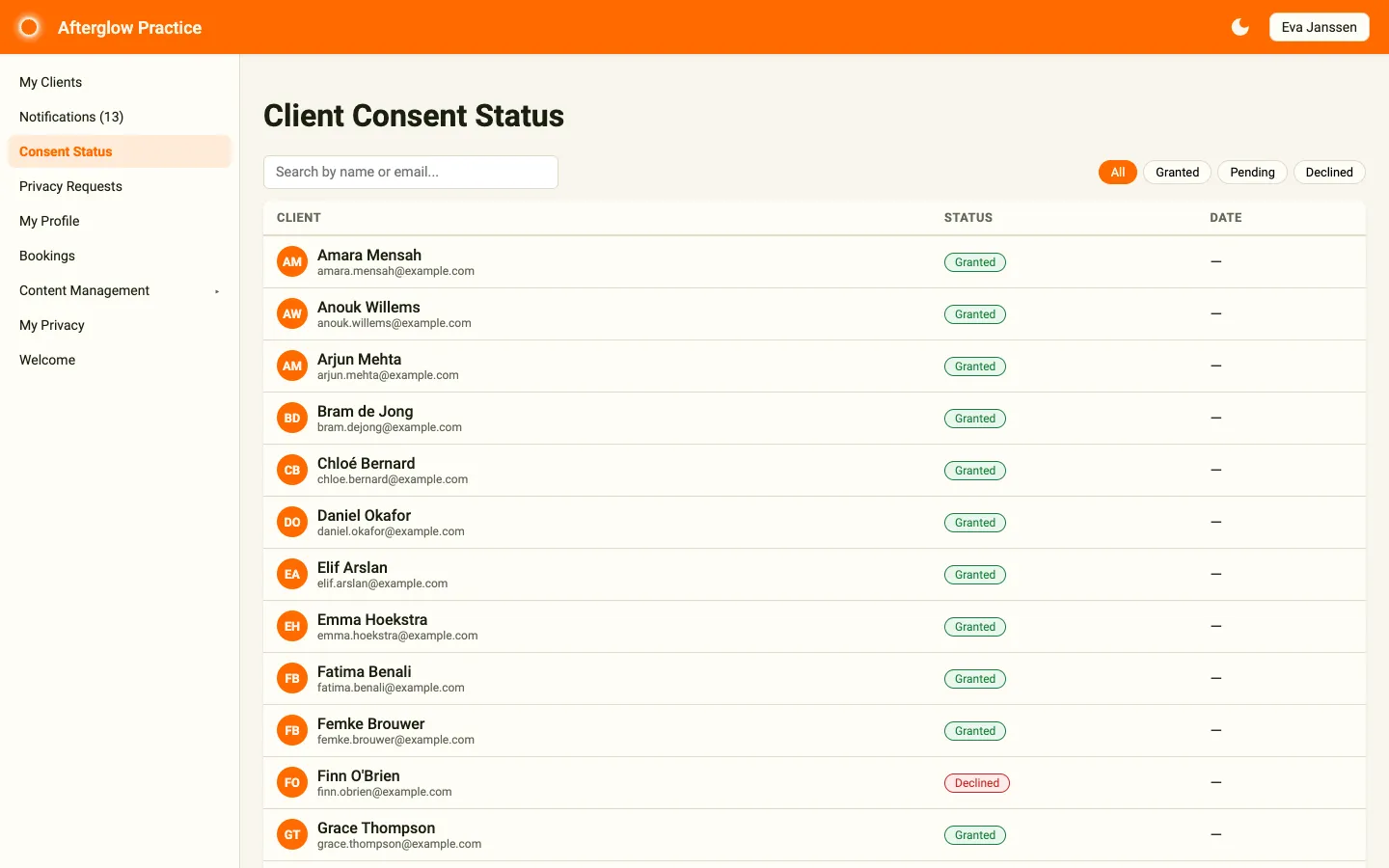
The page includes a search field and a set of filter chips:
- All — Shows every client.
- Granted — Clients who have opted in to sharing data with their coach.
- Pending — Clients who have not yet made a decision.
- Declined — Clients who have explicitly opted out.
The table shows each client’s name and email, their consent Status, and the Date the status was last updated (a dash when no date is recorded). Only clients with the Granted status will appear on your My Clients page.
Notifications
Section titled “Notifications”The Notifications page helps you stay on top of client engagement. It is split into two tabs.
Notifications tab
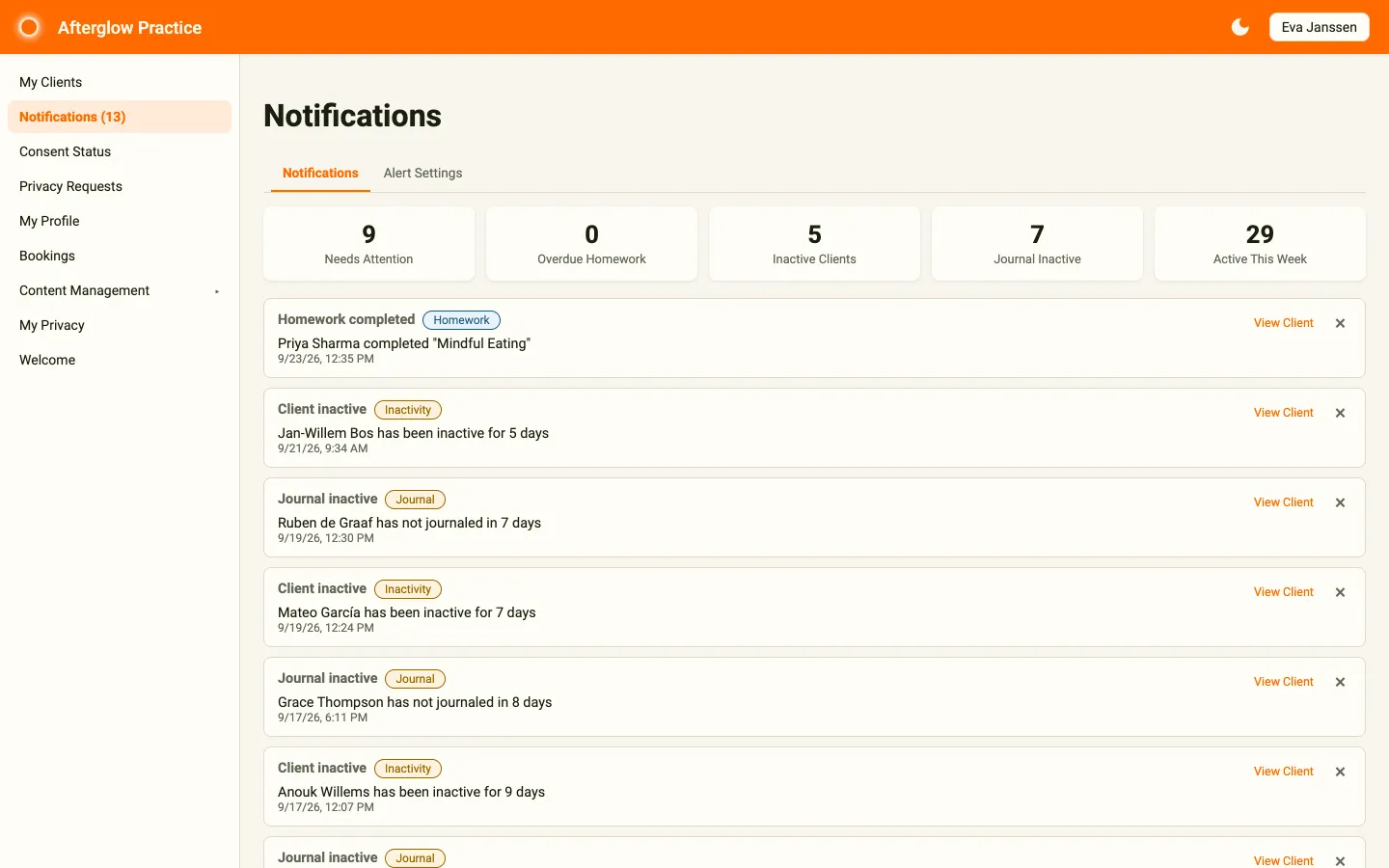
Section titled “Notifications tab”The Notifications tab opens with a stats grid showing five summary cards:
- Needs Attention — Number of clients flagged for inactivity.
- Overdue Homework — Number of homework assignments past their expiry date.
- Inactive Clients — Number of clients who have not logged in within your threshold.
- Journal Inactive — Number of clients who have not written a journal entry within your threshold.
- Active This Week — Number of clients who have been active in the past seven days.
Below the stats grid, an alert list shows individual engagement alerts, newest first. Each alert displays a title (for example Client inactive or Homework completed), a category chip (Homework, Inactivity, or Journal) colored by severity, a message, and a date and time. You can:
- Click View Client to open that client’s detail panel on the My Clients page.
- Click the × to dismiss the alert.
When all clients are on track, the message No alerts at this time. All clients are on track! appears in place of the alert list.
Alert Settings
Section titled “Alert Settings”The Alert Settings tab lets you configure when alerts are generated. Three categories of alerts can be switched on or off independently, each with its own threshold in days:
- Enable inactivity alerts — With Days before marking as inactive (default 5).
- Enable homework alerts — With Days before marking homework as overdue (default 1).
- Enable journal inactivity alerts — With Days before marking journal as inactive (default 7).
Click Save Settings to apply your changes. The stats grid and alert list update immediately to reflect the new thresholds.
Related topics
Section titled “Related topics”- Coaching — How coaching, consent, and payments work on the platform.
- Journaling — How journal entries, AI analysis, and emotion scoring work.
- Roles and Permissions — Which roles have access to Practice.
- Notifications and Alerts — How the notification system works across the platform.