

Translations
The Translations section lets you override and customize all user-facing text in the Afterglow mobile app. You can change wording to match your organization’s tone, fix translations for your audience, or add entirely new translation keys.
To write your own content — module titles, article headlines, and similar — in more than one language, see Multilingual text. That is a different field, used on content forms rather than on this page.
Who has access?
Section titled “Who has access?”Translations management is available to users with one of these roles:
- Admin — Full access to translation values and styling.
- SuperUser — Full access to translation values and styling.
See User Roles for a complete role comparison.
How translations work
Section titled “How translations work”Afterglow ships with a complete set of default translations in four languages: English, German, French, and Spanish. These defaults cover every piece of text in the mobile app.
When you edit a translation, your change is saved as a custom translation that takes priority over the default. This means:
- You only need to change the text you want to customize.
- Default translations continue to apply for everything you have not modified.
- You can reset any custom translation back to the platform default at any time.
Translation values
Section titled “Translation values”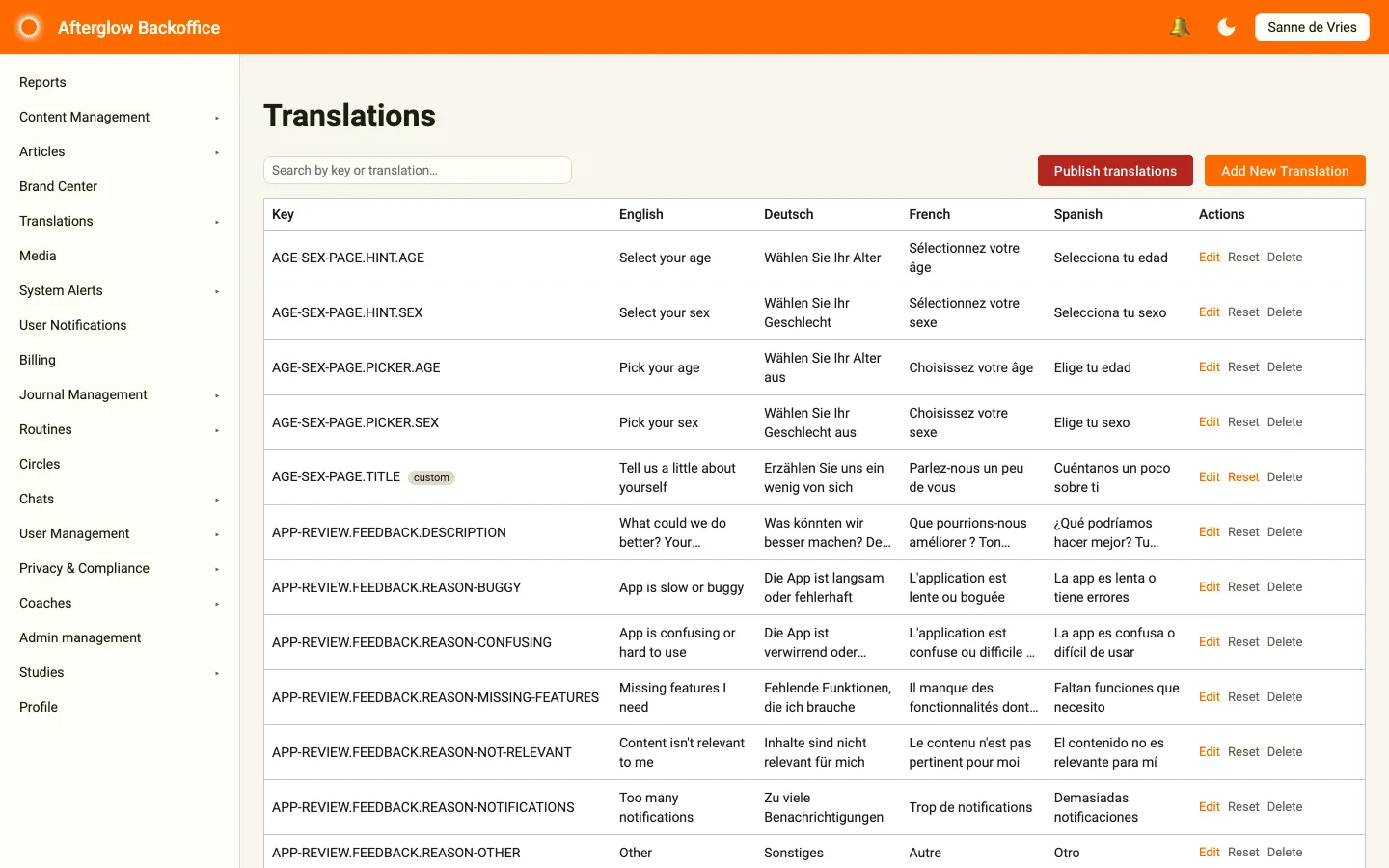
Expand Translations in the sidebar and click Translations to open the page. It displays all translation keys in a table with columns for:
- Key — The unique identifier for the translation (e.g.,
AGE-SEX-PAGE.TITLE). Keys you have customized or created are marked custom. - English — The English translation text.
- Deutsch — The German translation text.
- French — The French translation text.
- Spanish — The Spanish translation text.
Searching
Section titled “Searching”Use the Search by key or translation… field to narrow the table to keys or texts that contain your search term. Page controls below the table let you change the page size and move between pages.
Editing a translation
Section titled “Editing a translation”Click Edit on a row to open the Edit Translation dialog. Change the text for each language (English is required) and click Save. The change is saved straight away.
Adding a custom translation
Section titled “Adding a custom translation”Click Add New Translation to open the Create New Translation dialog. Enter a unique key and the English text, optionally fill in the other languages, and click Save. New translations are useful when you need text for custom features or workspace-specific content.
Resetting and deleting
Section titled “Resetting and deleting”Each row has two action buttons:
- Reset — Reverts a customized translation back to the platform default. Only available for system-managed keys that you have customized.
- Delete — Permanently removes a custom translation key. Only available for keys you created (not system-managed keys).
Both actions ask you to confirm first.
Translation styling
Section titled “Translation styling”The Translation styling page (under Translations in the sidebar) lets you customize the visual appearance of specific translation keys in the mobile app. Use the Filter by key… field to find a key. Each row shows:
- Key — The translation key to style.
- Font Style — Normal or Italic, or Default.
- Font Weight — The text weight (e.g., W300 for light, W700 for bold), or Default.
- Font Family — A font uploaded to the Media library, or Default.
- Color — A custom text color, or Default.
Click Edit on a row to open the Edit Styling dialog and change these settings. Click Add custom color to apply a color to a key, or Clear to remove it. Click Save to store the styling.
Saving and publishing
Section titled “Saving and publishing”Translation changes follow a two-step workflow:
- Save — Click Save in the edit dialog to store your change, or Cancel to discard it.
- Publish translations — Pushes saved changes live to all app users. The button is on both the Translations and Translation styling pages, and asks you to confirm first. Until you publish, your saved changes remain in the Backoffice only.
Related topics
Section titled “Related topics”- Brand Center — Customize your workspace’s visual identity including colors and typography.
- Multilingual text — Language tabs on content names, titles, and similar fields.